Finding the right controller settings can make a huge difference in the F1 26 DLC 2026 Season Pack.
The new cars require sharper battery management, more confidence on corner exit, and better precision through traction zones. If your steering feels too slow, your inputs feel inconsistent, or your display is distracting you during races, you are probably leaving lap time on the table.
This guide walks through the key controller settings to review, including steering rate, assists, camera, on-screen display, vibration, button mapping, and console performance settings.
These are not magic settings that will instantly make everyone faster, but they should give you a strong base to build from.
Start With Assists
For experienced controller players, the fastest setup is usually with assists turned off.
That means no traction control, no ABS, no braking assist, and no steering assist. However, that does not mean every player should immediately copy that approach.
If you are still learning the game, it is better to remove assists gradually. Turning everything off at once can make the car harder to control and slow down your improvement.
A sensible progression is:
- start with the racing line if you need help learning tracks
- reduce traction control once you are more confident on throttle
- remove ABS when you are comfortable modulating brake pressure
- move to manual gears once you are ready to manage exits more precisely
The goal is not to make the game harder for the sake of it. The goal is to use settings that help you become faster and more consistent.
Camera Settings
Camera settings are personal, but they are still important.
A good camera should help you judge apexes, braking points, steering angle, and car placement. If your camera is too high, too far back, or too offset, it can make the car feel less predictable.
For controller players, a stable cockpit or TV pod camera usually works best. The key is making sure the car is visually centred and easy to place on corner entry.
A useful tip is to enable car-specific camera settings. Some cars may need slightly different lateral positioning so the centre antenna or car reference point lines up properly.
When adjusting camera settings, focus on:
- keeping the car visually centred
- seeing enough of the track ahead
- avoiding excessive movement
- making apexes easier to judge
- keeping your view consistent between cars
Do not keep changing your camera every session. Once you find a view that works, stick with it so your braking points and turning references become more natural.
On-Screen Display Settings
Your OSD should show the information you need without distracting you.
In F1 26, battery information is especially important because ERS management is a much bigger part of the game. You need to see your battery level clearly, but you also need to keep enough visibility around the car.
Useful OSD elements include:
- battery level
- lap delta
- tyre information
- track map
- session timer
- position and gaps
Some players prefer turning off driver tags because they add extra visual clutter. You can still see who you are racing from the timing tower, so removing tags can make the screen feel cleaner.
If you move the battery display, avoid placing it somewhere that blocks proximity arrows or important race information. In races, those arrows are important for knowing when a car is alongside or directly behind.
For qualifying, you can afford to move certain elements higher or more centrally because traffic awareness is less important than during a race.
Steering Rate
Steering rate is one of the most important controller settings.
A higher steering rate makes the car respond faster to stick inputs. This can help with turn-in, quick direction changes, and tight circuits such as Monaco.
However, going too high can make the car nervous and harder to control.
For newer players, a steering rate around 100 to 120 is a sensible starting point. Once you are more comfortable, you can gradually increase it.
More experienced controller players may prefer something higher, such as 140 to 160, because it allows faster rotation and more aggressive turn-in.
A simple approach:
- beginner: 100-120
- intermediate: 120-140
- advanced: 140-160
If the car feels too twitchy, lower the steering rate. If it feels slow to rotate, increase it gradually.
Do not jump straight to a very high steering rate if you are not comfortable with the car yet. It can reduce confidence and make you overcorrect through corners.
Linearity, Dead Zone and Saturation
For most controller players, it is best not to overcomplicate these settings.
A strong baseline is to keep most settings close to zero, then only adjust if you have a specific issue.
Settings to review:
- steering linearity
- throttle linearity
- brake linearity
- steering dead zone
- throttle dead zone
- brake dead zone
- saturation settings
If your controller has stick drift, increase the steering dead zone slightly. If your brake or throttle input is registering when you are not pressing the trigger, add a small dead zone.
Some players use a very small brake dead zone, such as 1, to make the brake input feel cleaner. But avoid making big changes unless you know exactly what you are trying to fix.
The best controller settings are usually the ones that feel predictable. Consistency matters more than chasing extreme values.
Vibration and Force Feedback
Even on controller, vibration can help you feel what the car is doing.
Higher vibration can make it easier to sense traction loss, kerbs, and track surface changes. However, too much vibration can become distracting.
A strong vibration setting can work well if you like more feedback through your hands, but this is personal. Some players prefer reducing it for a cleaner feel.
Review:
- vibration strength
- on-track effects
- rumble strip effects
- off-track effects
If kerbs or off-track moments feel too aggressive, reduce those specific effects. You want feedback that helps you drive, not feedback that makes the controller harder to manage.
Steering Rotation
Steering rotation affects how much steering input is required for full lock.
For F1 cars, a value around 340 to 360 degrees is usually a good range. This gives enough steering response for tight corners while still keeping the car manageable through faster sections.
A lower value can make the car feel sharper, but it can also make inputs more sensitive. A higher value can feel smoother, but may make tight corners harder.
A good starting point is around 340 degrees, especially if you want enough rotation for slower circuits without making the car too nervous.
Button Mapping
Button mapping matters more in F1 26 because ERS and straight-line mode are more important.
The default button layout can work, but it is not always ideal. Ideally, you want quick access to the controls you use most often during a race.
Useful controls to prioritise include:
- ERS / battery mode
- MFD navigation
- brake bias
- differential adjustments
- look back
- straight-line mode assist if you use it
One useful approach is to map MFD navigation to the right stick while keeping look back accessible. This makes it easier to change race settings without taking too much focus away from driving.
However, button mapping is very personal. The most important thing is that your layout lets you manage race-critical controls quickly and consistently.
If you are racing seriously, consider creating shortcuts for battery mode and brake bias. In F1 26, those adjustments can be important during races.
Adaptive Triggers
Adaptive triggers can make the game feel more immersive on PlayStation, but they are unlikely to make you faster.
In fact, some players may find them less consistent because the trigger resistance changes how inputs feel under braking and throttle.
If you are playing casually, adaptive triggers can be fun. If your goal is lap time and consistency, it may be better to turn(them off or reduce their impact.
The priority should be repeatable input, especially for throttle control and braking.
Use a Wired Controller Connection
One overlooked setting is the controller connection method.
If you are on PlayStation, connecting your controller via USB rather than Bluetooth can reduce input delay and make inputs feel more consistent.
To do this, connect the controller with a USB cable and check your console settings to make sure the controller is communicating through USB rather than wireless.
This will not transform your driving overnight, but lower and more stable input latency can help with precision, especially in braking zones and fast direction changes.
Prioritise Performance Mode
Another important setting is graphics priority.
For racing games, frame rate matters more than visual quality. Higher and more stable FPS can improve responsiveness and make the game feel smoother.
On console, set the game to Performance Mode rather than Resolution or Quality Mode where available.
On PlayStation, also check the system-level game preset settings and select Performance Mode there too.
This can help witi:
- input response
- visual smoothness
- braking accuracy
- steering precision
- consistency in fast corners
The game may look slightly less sharp, but the improvement in responsiveness is usually worth it if your goal is to be faster.
Recommended Baseline Controller Settings
Here is a practical baseline to start from:
| Setting | Recommended starting point |
|---|---|
| Steering rate | 100-120 for beginners, 140-160 for advanced players |
| Steering dead zone | 0, unless you have stick drift |
| Throttle dead zone | 0, unless needed |
| Brake dead zone | 0-1 |
| Steering linearity | 0, unless inputs feel too sharp |
| Throttle linearity | 0, unless needed |
| Brake linearity | 0, unless needed |
| Steering rotation | 340-360 |
| Adaptive triggers | Off or reduced for performance |
| Graphics priority | Performance Mode |
| Controller connection | USB where possible |
These settings are a starting point. Adjust them gradually based on how the car feels.
Final Thoughts
The best controller settings for the F1 26 DLC are not just about copying someone else’s numbers. They are about creating a setup that feels stable, responsive, and repeatable.
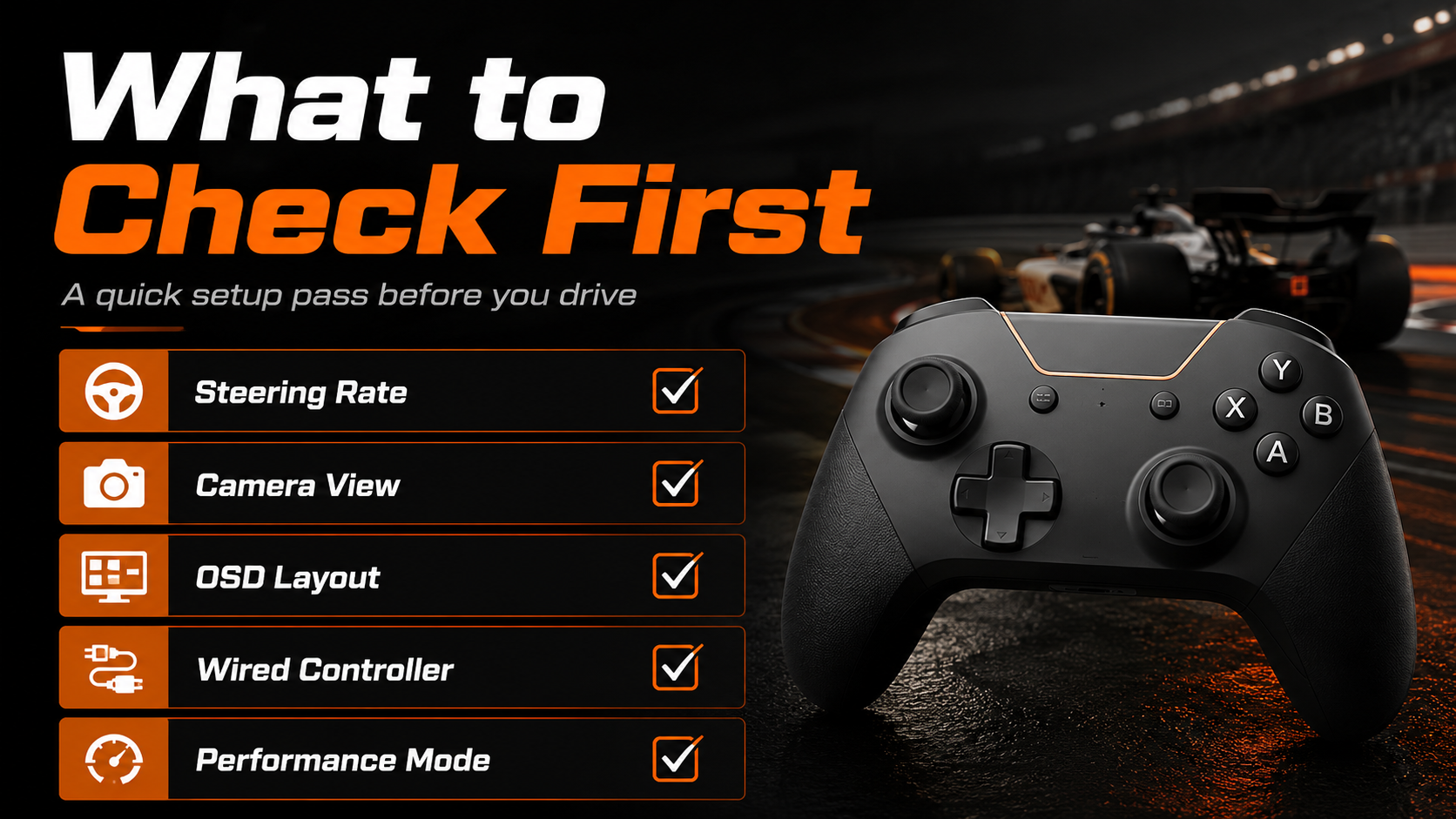
Focus on the areas that matter most:
- steering rate
- camera position
- OSD clarity
- vibration feel
- button mapping
- wired controller connection
- performance mode
If you are new, start with safer settings and build confidence. If you are more experienced, higher steering rate and sharper response can help you attack corners more aggressively.
Small improvements in input delay, visibility, and control feel can add up to real lap time.
If you want a stronger starting point for the new season, Track Titan now has F1 26 setup bundles available, including dry and wet setups, with Race and Quali Esports variations being added automatically once ready.